

What is Microsoft Power Automate?
Microsoft Power Automate Overview

What is Power Automate? Microsoft Power Automate, also searched as MS Power Automate or PowerAutomate, is Microsoft’s low-code service for automating everyday work. You set a trigger, add the steps, and the flow runs by itself every time that trigger fires. It sits inside the Power Platform and works closely with the Microsoft services and consulting many companies already rely on, including Microsoft 365 and Dynamics 365.
What is Power Automate and what Does Power Automate Do?
Microsoft Power Automate (re-branding of Microsoft Flow) is a service that helps you create automated workflows between your favourite apps and services to synchronize files, get notifications, collect data and more.
Power Automate is one of the pillars of Power Platform. It provides a low code platform for workflow and process automation. It supports over 1,000 connectors to create flows.
So what does Power Automate do in practice? It watches for an event in one app, like a new email or a submitted form, and then acts in another app without anyone touching a keyboard. A sales team might use it to log every new lead in Dynamics 365. A finance team might use it to save each invoice PDF to the right folder.
Types of Flows
Every Power Automate flow falls into one of the types below.
1 Automated flows
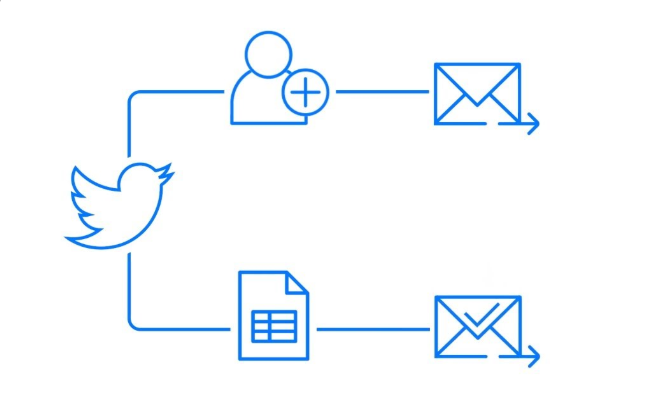
Create a flow that performs one or more tasks automatically after it’s triggered by an event. For example, create a flow that notifies you by email when someone sends a tweet that contains a keyword you specify. In this example, sending a tweet is the event, and sending mail is the action.
2 Button flows
There are many repetitive tasks that we all wish we could run with just a tap of a button. For example, you may need to quickly email your team to remind them to join the daily team sync, or you may want to start a new Visual Studio Online build of your code base after you’ve been notified that there are no more check ins planned for the day. Instant flows allow you to accomplish these and many other tasks simply by tapping a button on your mobile device.
3 Scheduled flows
Create a flow that performs one or more tasks (such as sending a report in email):
- once a day, an hour, or a minute
- on a date that you specify
- after a number of days, hours, or minutes that you specify
4 Business Process flows
You can help ensure that people enter data consistently and follow the same steps every time they work with a customer by creating a business process flow. For example, you might want to create a business process flow to have everyone handle customer service requests the same way, or to require that people get approval for an invoice before submitting an order. Business process flows use the same underlying technology as other processes, but the capabilities that they provide are very different from other features that use processes.
5 Desktop flows
Desktop flows bring robotic process automation (RPA) into Power Automate. They record your clicks and keystrokes on Windows apps or websites and replay them later, which helps a lot when an old system has no API. Power Automate for desktop comes free with Windows 11, and a cloud flow can start a desktop flow once you add a premium license.
You can create and manage all flows from the “My flows” tab in PowerAutomate.
Get notifications when something’s wrong
Use the Power Automate notification center (located at the top right of the designer) to quickly see a list of flows have failed recently. The notification center displays a number that indicates the number of flows that failed recently.
From the notification center, you can navigate to the Activity page of Power Automate to see all your flows that recently ran, sent notifications, or failed.

Key Features of Microsoft Power Automate in 2026
The product has changed a lot since its Microsoft Flow days. These are the features teams use most right now.
- Copilot in Power Automate lets you type what you want in plain English, and it builds a first draft of the flow for you to adjust.
- Prebuilt connectors link Microsoft 365, Salesforce, SAP, ServiceNow and Google apps. If a connector doesn’t exist, you can build a custom one for your own API.
- AI Builder reads invoices, receipts and forms and pulls out the fields you need.
- Process mining looks at your system logs and shows where work gets stuck, so you automate the right step first.
- Agent flows connect with Copilot Studio, which means an AI agent can call a flow to finish a task on its own.
Agent flows are where a lot of new projects start this year. Letting an AI agent trigger real business actions needs clear limits on what it can touch, which is why companies often bring in agentic AI services before they switch these flows on.
Benefits of Microsoft Power Automate
Microsoft Power Automate is a tool which anybody can use and integrate into their office 365 package. Besides being a business process management platform, which automates repetitive tasks and simplifies their execution on behalf of employees, it also provides additional advantages like integrate with other applications (connectors), prioritize tasks for employees etc.
What Can Power Automate Do? Common Use Cases
If you have been wondering what it is good for in a normal office, these are the flows we see set up most often.
- Saving vendor email attachments straight into a SharePoint library.
- Sending purchase requests to a manager in Teams and recording the approval.
- Copying new form responses into Excel and alerting the owner when a number looks off.
- Setting up accounts and sending welcome emails when HR adds a new hire.
- Moving closed deals from Dynamics 365 or Salesforce into the accounting system every night.
The SharePoint flow is usually the first one companies build, because most of their files already live there. It works best when libraries and permissions are set up properly, and that groundwork is a big part of Microsoft SharePoint solutions.
Use Case: Automated Invoicing with Power Automate
A typical invoicing process may look like figure 1. An email arrives with the attached invoice. The email recipient must read over the invoice and look for the pertinent information and then depending on the amount of the invoice, the recipient must send it for further approval. Once the invoice is approved, someone must update the invoicing software being used with the information from the latest invoice. In many organizations, this invoicing software is often an older application that does not have an API. The entries to the software must be done manually. This multi-step process is of course time consuming and is not a high value task, yet fundamental for the business. Also, errors can occur in some of the steps, from simply mis-reading the invoice amount, to entering the wrong amount or customer information into the invoicing application. With power automate use cases, this entire process can be done automatically, not only saving your employee’s time, but also reducing the potential for human error.
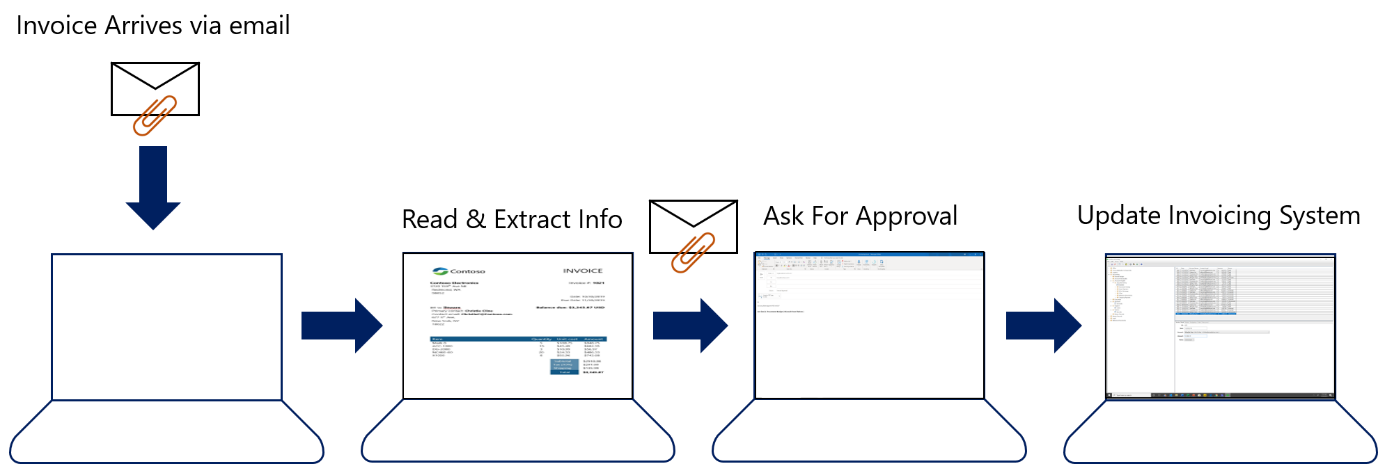
Figure 1. Typical invoicing process steps
What is Microsoft Flow? How It Became Power Automate
Microsoft Flow launched in 2016 as a simple tool for connecting cloud apps. At Microsoft Ignite in November 2019, Microsoft renamed it Power Automate and added desktop RPA. Copilot and process mining came later. So anyone asking what is Microsoft Flow today is really asking about Power Automate. Old flows kept working after the rename, and nothing had to be rebuilt. Today the tool is one piece of a bigger picture, where most business software runs across browsers, phones and the cloud. For a wider view of how these systems fit together, read our article on innovative solutions for web, mobile, and cloud applications.
Power Automate Licensing Explained
A common follow-up question is whether it costs extra. For many teams it doesn’t, at least at first. Standard cloud flows using Outlook, SharePoint, Teams and OneDrive are included in most Microsoft 365 business plans. Premium connectors, desktop RPA triggered from the cloud and process mining need a Power Automate Premium license. Unattended bots run under the Process plan. Microsoft renames these plans now and then, so check its licensing guide before you buy.
Power Automate vs Azure Logic Apps
Both tools run on the same workflow engine, but they are built for different people. Power Automate is for business users who want to build flows in a browser and get on with their day. Logic Apps is for developers who need source control, deployment pipelines and pay-per-run billing inside Azure. Companies with heavy system-to-system integration usually build those in Logic Apps through Microsoft Azure development services and keep team-level automation in Power Automate.
What is Microsoft Power Automate, and Do You Need It?
Understanding the tool is the easy part. Deciding where it fits takes more thought. You will likely get value from it if your team copies data between systems by hand or chases approvals over email. It may not be worth the effort if your main apps already handle those steps, or if your processes change every few weeks.
A simple test: write down five tasks your team repeats, track the time they take for one week, and automate the most expensive one first. For larger rollouts, digital transformation consulting services help you choose the right processes and keep flows under control as they multiply.
FAQs
Q1. What is Power Automate used for?
It is used to automate repeated tasks like approvals, file handling, alerts and data sync between business apps.
Q2. How does Power Automate work in simple terms?
It’s a tool that does your routine computer work for you. You tell it what should start the process and what should happen next, and it repeats that every time.
Q3. What is a Power Automate flow?
A flow is a set of steps that starts with a trigger, like a new email, and ends with one or more actions, like saving a file or sending a message.
Q4. Is MS Power Automate free?
Power Automate for desktop is free on Windows 10 and 11, and basic cloud flows come with most Microsoft 365 business plans. Premium connectors and cloud-run RPA need a paid license.
Q5. What is Power Automate Desktop?
It’s the RPA app built into Windows. It automates tasks on your own PC, such as filling forms in older software or moving files between folders.
Q6. What is the difference between Power Automate and Power Apps?
Power Apps builds the screens people use to enter and view data. Power Automate runs the processes that happen behind those screens.
Author – Rashi Chauhan