
Emergency Recovery Protocols for Unsaved SQL Queries: Rescuing Work After System Crashes
Recovering Unsaved SQL Queries after a crash is one of those skills every database developer eventually needs, usually at the worst possible moment. You hit F5 to execute. It runs successfully. You take a sip of coffee, and—boom—a sudden power outage cuts your screen to black.
When your system reboots and you reopen SQL Server Management Studio (SSMS), the standard AutoRecover prompt fails to pop up. Before you resign yourself to retyping hundreds of lines of code from memory, there is a low-level OS behaviour working in your favour. Recovering Unsaved SQL Queries after a crash isn’t guesswork — it comes down to knowing exactly where Windows and SQL Server quietly keep that data.
When you execute queries or generate scripts via Object Explorer, SSMS streams temporary execution payloads directly to the Windows %temp% directory. If a forced shutdown interrupts the application before it can run its standard cleanup routines, your query text remains sitting in system memory artifacts.
Objective: Recovering Unsaved SQL Queries After a Crash
To safely locate, extract, and restore unsaved .sql queries and execution buffers from the Windows %temp% directory and the SQL Server plan cache following an unexpected system crash or forced power shutdown.
Prerequisites
Before attempting to recover Unsaved SQL Queries, confirm your environment meets the following:
- Operating System: Windows 10/11 or Windows Server.
- Environment: SQL Server Management Studio (SSMS 18.x, 19.x, or 20.x).
- Permissions: Read/Write access to the local user account’s %appdata% and %temp% directories.
- Execution Condition: The query must have been executed at least once or generated via SSMS tooling prior to the crash.
Having these recovery protocols documented and ready before a crash happens is the kind of operational discipline that solid DevOps services and solutions bring to a team.
Steps for Recovering Unsaved Files
These steps walk through recovering Unsaved SQL Queries directly from the Windows file system.
Step 1: Access the Windows Temp Directory: Environment Access.
Press Win + R on your keyboard to launch the Windows Run dialog box. Input the environment path below and press Enter:
%temp%
This automatically redirects your file browser to C:\Users\<YourUsername>\AppData\Local\Temp.
Step 2: Filter and Sort Directory Contents: Chronological Sorting.
Because the %temp% folder contains thousands of system files, isolate recent artifacts by switching File Explorer to Details view and clicking the Date modified column header. Sort the directory descending so that files generated immediately prior to the power failure appear at the top.
Step 3: Target Execution Artifact Extensions: Pattern Identification.
Look specifically for temporary payload patterns created during query execution:
- ~tmp[RandomHex].sql or sql[Random].tmp (Generated during F5 execution and Object Explorer scripting).
- ~vs[RandomHex].sql (Generated by VS-isolated shell auto-saves).
Step 4: Deep Scan File Contents via Search:Content Inspection.
Instead of manually opening hundreds of temporary files, use File Explorer’s native content search filter. In the search bar at the top-right of the %temp% window, enter a unique string known to be in your lost script:
content:”YOUR_TABLE_OR_PROCEDURE_NAME”
or u can just scan it by .sql extension so will get all the files that has SQL Extension.
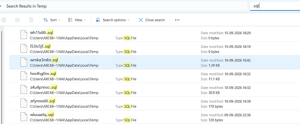
Step 5: Extract and Safely Relocate the Script:File Restoration.
Once identified, right-click the file and open it using Notepad or VS Code to verify the T-SQL text. Copy the entire file out of %temp% and paste it into a permanent directory (e.g., your local project folder). Rename the file extension to .sql before reopening it in SSMS.
Secondary Recovery Protocol: The Execution Plan Cache
If Windows background processes or disk cleanup utilities cleared your %temp% directory upon system startup, you can fall back on the SQL Server Engine.
Because the SQL Server database engine runs as a separate background service (sqlservr.exe), any query executed prior to the crash is stored inside the engine’s Dynamic Management Views (DMVs). Knowing your way around both OS-level recovery and the database engine itself is part of what separates a quick fix from a properly engineered system. For a broader look at building resilient applications end to end, see Full-Stack Solutions for Growing Digital Businesses. Connect to your server and execute the script below to extract your lost text from the plan cache:
SQL QUERY:
SELECT dest.text AS [RecoveredQueryText], deqs.last_execution_time AS [ExecutionTime]
FROM sys.dm_exec_query_stats AS deqs
CROSS APPLY sys.dm_exec_sql_text(deqs.sql_handle) AS dest
WHERE dest.text LIKE ‘%YourSpecificTableName%’ — Put a keyword from your lost query here
ORDER BY deqs.last_execution_time DESC;
Summary
When SSMS closes abruptly, standard file recovery paths do not always trigger. By leveraging OS-level execution streams in %temp% and server-level execution plans in DMVs, database teams can reliably recover critical work and prevent costly redevelopment hours. Unsaved SQL Queries don’t have to mean lost work. Building this kind of recovery know-how into your team’s routine is exactly what ongoing maintenance and support services are meant to cover.