
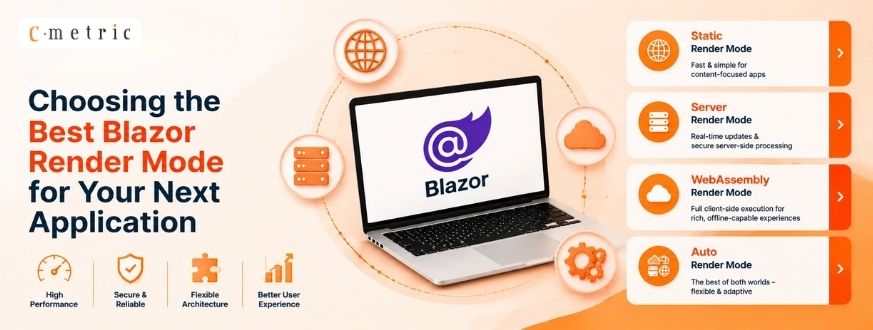
Choosing the Best Blazor Render Mode for Your Next Application
Introduction
One of the most significant architectural shifts in modern web development was introduced with the evolution of Blazor in .NET 8 and beyond. Prior to these updates, developers were forced to choose between Blazor Server or Blazor WebAssembly for an entire application.
With the introduction of the Blazor Web App template, Microsoft established Blazor Render Modes, allowing individual components to determine their execution and rendering strategy. This flexibility enables a single application to seamlessly integrate:
- Static pages for optimized SEO and fast initial load.
- Interactive Server components for real-time, server-driven updates.
- Interactive WebAssembly components for client-side performance and offline capabilities.
- Interactive Auto components that intelligently transition between server and client execution.
Google Cloud Migration Services help organizations seamlessly move their applications, data, and workloads to Google Cloud with enhanced security, scalability, and performance.
Deffining Render Modes
Think of a Blazor Render Mode as an instruction manual for your component. It tells the browser here the component should run and ho it should behave.
What is Interactivity and Stateful UI?
In the context of Blazor, “interactivity” represents a stateful UI where the application actively maintains persistent state between user actions—like clicking a button, typing in a field, or hovering over an element—without requiring a full page refresh. When a component is interactive, it manages a continuous stateful circuit between the user and the application logic.
Av Blazor Render Mode manages this experience by determining:
- Execution Location: Does the code run on the server or in the user’s browser?
- Rendering Source: Where is the HTML generated?
- Event Handling: Does the UI support immediate response to user input?
Global vs. Component-Level Interactivity
Interactivity can be configured at two distinct levels within a Blazor application, offering developers granular control over the rendering lifecycle:
- Component-level: Applied directly to a specific component using the @rendermode directive. This is ideal for isolated interactive elements like a counter or a chart on an otherwise static page.
- Global-level: Configured in App.razor or Routes.razor to enable interactivity for the entire application. For instance, applying a Blazor render mode to the Routes component enables it for all pages by default:

Importantly, component-specific settings take precedence over global configurations. If a global mode is set but a specific component defines its own @rendermode, that component will adhere to its explicit setting rather than the global default.
Cloud Application Development Services enable businesses to build scalable, secure, and high-performance cloud solutions that enhance flexibility, efficiency, and digital transformation.
Available Blazor Render Modes Comparison
|
Render Mode |
Interactive | C Executes | Requires SignalR | Requires Download |
|
Static Server |
No |
Server | No |
No |
|
Interactive Server |
Yes | Server | Yes |
No |
|
Interactive WebAssembly |
Yes | Browser | No |
Yes |
| Interactive Auto |
Yes |
Both | Initial Only |
Yes |
1. Static Server Render Mode
This is the baseline render mode. The server generates standard HTML and transmits it to the browser. Once rendered, the connection is severed. Interactivity is limited to traditional HTTP requests (e.g., standard form submissions).
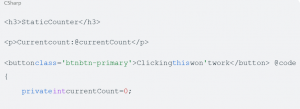
Note: This is the default render mode for components in a Blazor Web App and requires no explicit directive.
- Advantages: Exceptional SEO, minimal payload, and rapid first-paint times.
- Disadvantages: No real-time interactivity, no JS interop after initial render, and no component-level event handling.
2. Interactive Server Render Mode
Building upon the original Blazor Server model, components render on the server and maintain a persistent SignalR connection. User interactions are sent to the server via this circuit, processed in C, and the resulting UI “diff” is sent back to update the browser.
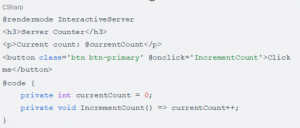
- Advantages: Grants full access to server-side resources (e.g., direct database access), delivers a minimal initial payload, and ensures rapid startup.
- Disadvantages: Demands constant connectivity, consumes server-side memory for each active user, and ties UI responsiveness to network latency.
3. Interactive WebAssembly (WASM) Render Mode
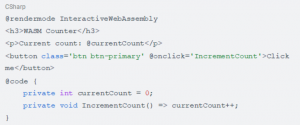
In this mode, the component executes entirely within the browser’s context. The client downloads the .NET runtime, necessary assemblies, and application DLLs to execute C locally via WebAssembly.
- Advantages: Provides highly responsive UI, enables offline capabilities, and offloads processing to the client-side.
- Disadvantages: Imposes a large initial download and delays the initial load experience while the client-side runtime initializes.
4. Interactive Auto Render Mode
Auto mode represents the pinnacle of Blazor’s flexibility. On the initial visit, the component utilizes Interactive Server to provide an immediate interactive experience. Simultaneously, the browser begins downloading WebAssembly resources in the background. On subsequent visits, the component executes using Interactive WebAssembly, eliminating the need for a persistent server connection.

Implementation Standards
JavaScript Interop and Lifecycle Management
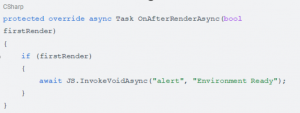
A frequent architectural pitfall is attempting to invoke JavaScript during the server-side prerendering phase. Because the browser environment and the window object are undefined during static rendering, developers must utilize OnAfterRenderAsync to ensure the
client-side environment is fully initialized:
Dependency Injection Constraints
It is critical to remember that service availability varies by render mode:
- Interactive Server: Can inject server-specific services like
ApplicationDbContext.
- Interactive WebAssembly: Must rely on HttpClient to communicate with APIs, as it cannot access the server’s database directly.
Mixing Blazor Render Modes in the Same Page
One of the most powerful features of modern Blazor is that not every component on a page needs to behave the same way. You can keep most of a page as static server-rendered HTML (SSR) while making only the parts that require user interaction interactive.
This helps improve:
- Faster initial page load
- Better SEO
- Lower server resource usage
- Smaller interactive surface
The rest of the page remains static, while only the SearchBox becomes interactive.
Can a Layout Be Static While the Page Is Interactive?
Yes. A common architecture is:
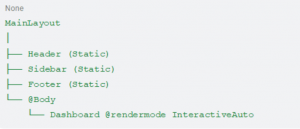
Here:
- The layout renders as static HTML.
- The page displayed inside @Body is interactive.
- Users get a fast first paint while still benefiting from interactive components where needed.
Important Rule
A static component can contain interactive child components, because the interactive component creates its own render-mode boundary. However, once a component is already interactive (for example InteractiveServer), its descendants inherit that interactive render.
mode. You generally can’t mix different interactive render modes (InteractiveServer and InteractiveWebAssembly) within the same interactive component hierarchy without creating a separate boundary.
This design keeps render-mode behavior predictable while still allowing you to make only the necessary parts of your application interactive.
Architectural Recommendations
|
Scenario |
Recommended Render Mode |
|
Marketing & SEO-focused content |
Static Server |
|
Admin Dashboards & Internal Tools |
Interactive Server |
|
High-Performance Client Applications |
Interactive WebAssembly |
| Public-facing SaaS with mixed needs |
Interactive Auto |
Conclusion
Blazor Render Modes provide a flexible, component-driven architecture that moves beyond a binary choice of server-side versus client-side execution. By strategically mixing Static, Server, WebAssembly, and Auto modes, developers can optimize for SEO, performance, and interactivity. Mastering these render boundaries and lifecycle requirements allows for the creation of scalable, high-performance applications tailored to specific user needs.